Manage FileVault configurations in the Library
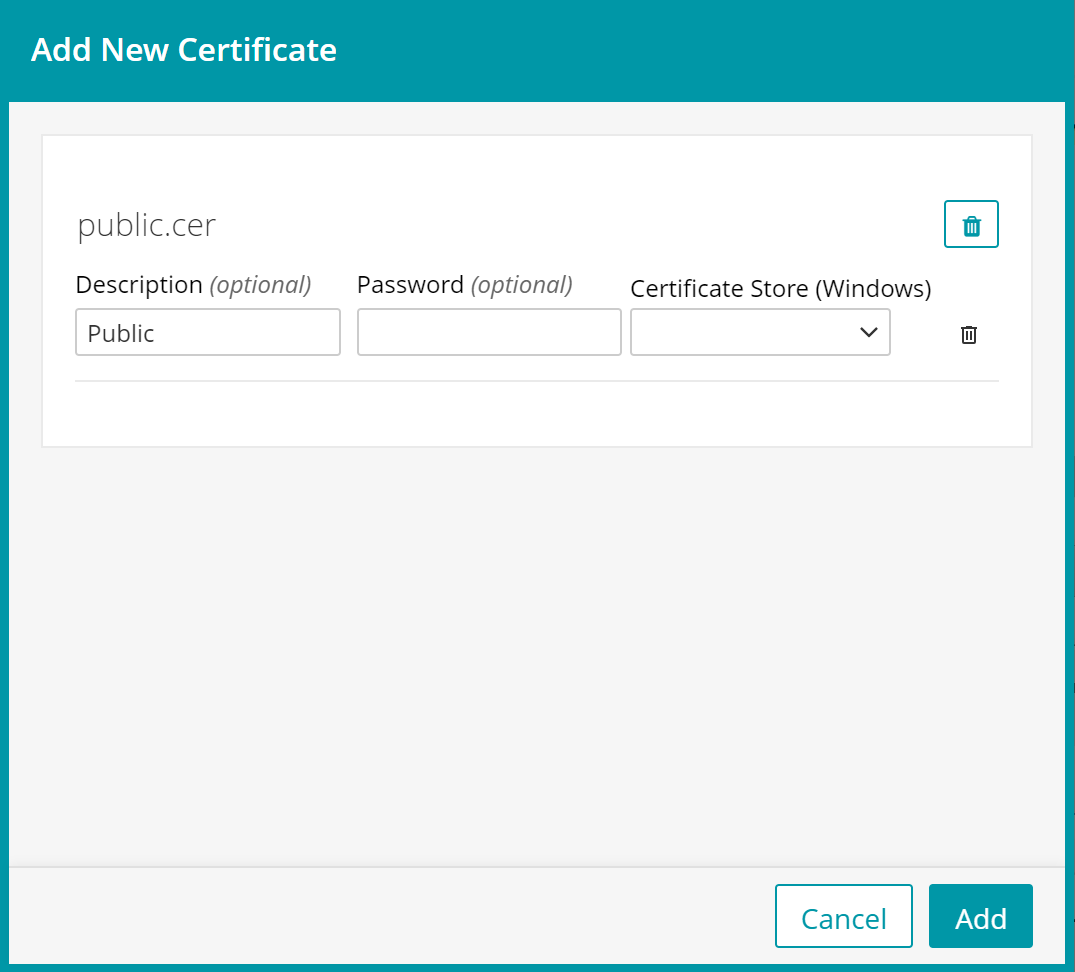
To add FileVault certificates to Library:
- Select the Libraries tab in top navigation.
- Click Certificates.
- Choose a certificate to upload.
- Click Add options.
- If adding a public certificate add 'Public' to the description field.
- If adding a private certificate like a FileVault master key export or a decryption certificate add 'Private' to the description field.
- If adding a master key or decryption certificate, add the password field. This password must match the password entered when exporting the master key or decryption certificate.
- Click Add.
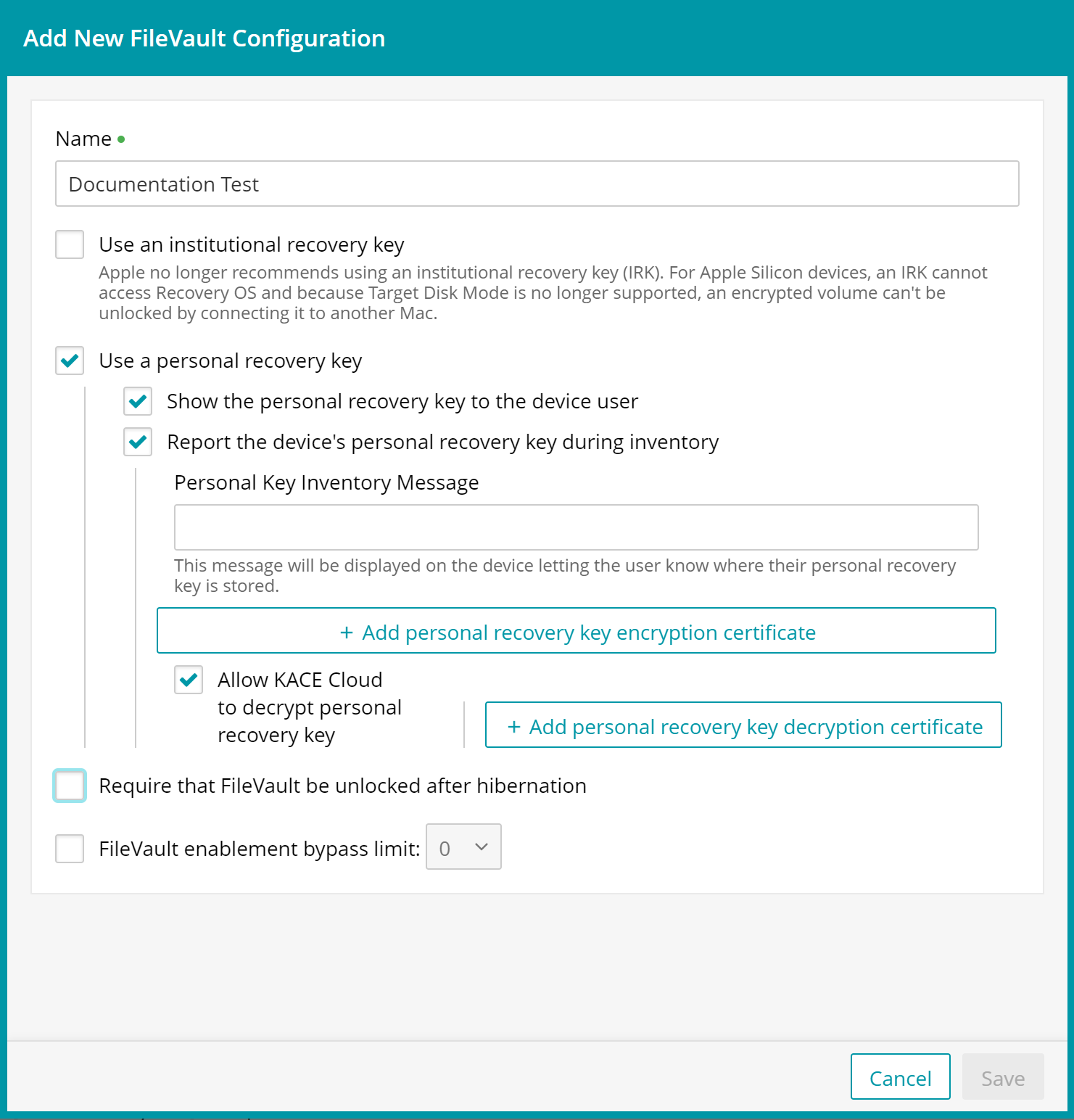
FileVault configuration options
KACE Cloud has the following options available when creating a FileVault configuration.
- Name - A name must be entered and must be unique in the FileVault library.
- Institutional recovery key - Apple no longer recommends using an institutional recovery key (IRK). For Apple Silicon devices, an IRK cannot access Recovery OS and because Target Disk Mode is no longer supported, an encrypted volume can not be unlocked by connecting it to another Mac.
- Add institutional recovery key certificate - an exported public certificate from a FileVault key chain must be chosen from the certificate library. This certificate is sent to the device.
- Personal recovery key - This option is selected by default when you create a new FileVault configuration.
- Show the personal recovery key to the device user - option to show the personal recovery key to the device user during FileVault setup (required if not reporting the personal recovery key during inventory).
- Report the device's personal recovery key during inventory - option to allow the personal recovery key to be reported during KACE Cloud inventory (required if not showing the device user the personal recovery key during inventory).
- Personal Key Inventory Message - a bit of text to indicate to the user that their recovery key is reported to KACE Cloud.
- Add personal recovery key encryption certificate - the certificate used to encrypt the personal recovery key when it is reported to KACE Cloud during inventory. This certificate is sent to the device.
- Allow KACE Cloud to decrypt personal recovery key - allows KACE Cloud to decrypt the personal recovery key.
- Add personal recovery key decryption certificate - the private decryption certificate if the encryption certificate is added.
- Require that FileVault be unlocked after hibernation (optional)
- FileVault enablement bypass limit - Allows the device user to bypass FileVault a set number of times.
Create FileVault configuration in Library
To create and save a FileVault configuration:
- Select the Libraries tab in top navigation.
- Click Security.
- Click Add New > FileVault.
- Name your new configuration.
- Click Save.
Edit FileVault configuration in Library
If devices are associated with the FileVault configuration, you will be prevented from changing it.
- Select the Libraries tab in top navigation.
- Click Security.
- Select a configuration from the main list.
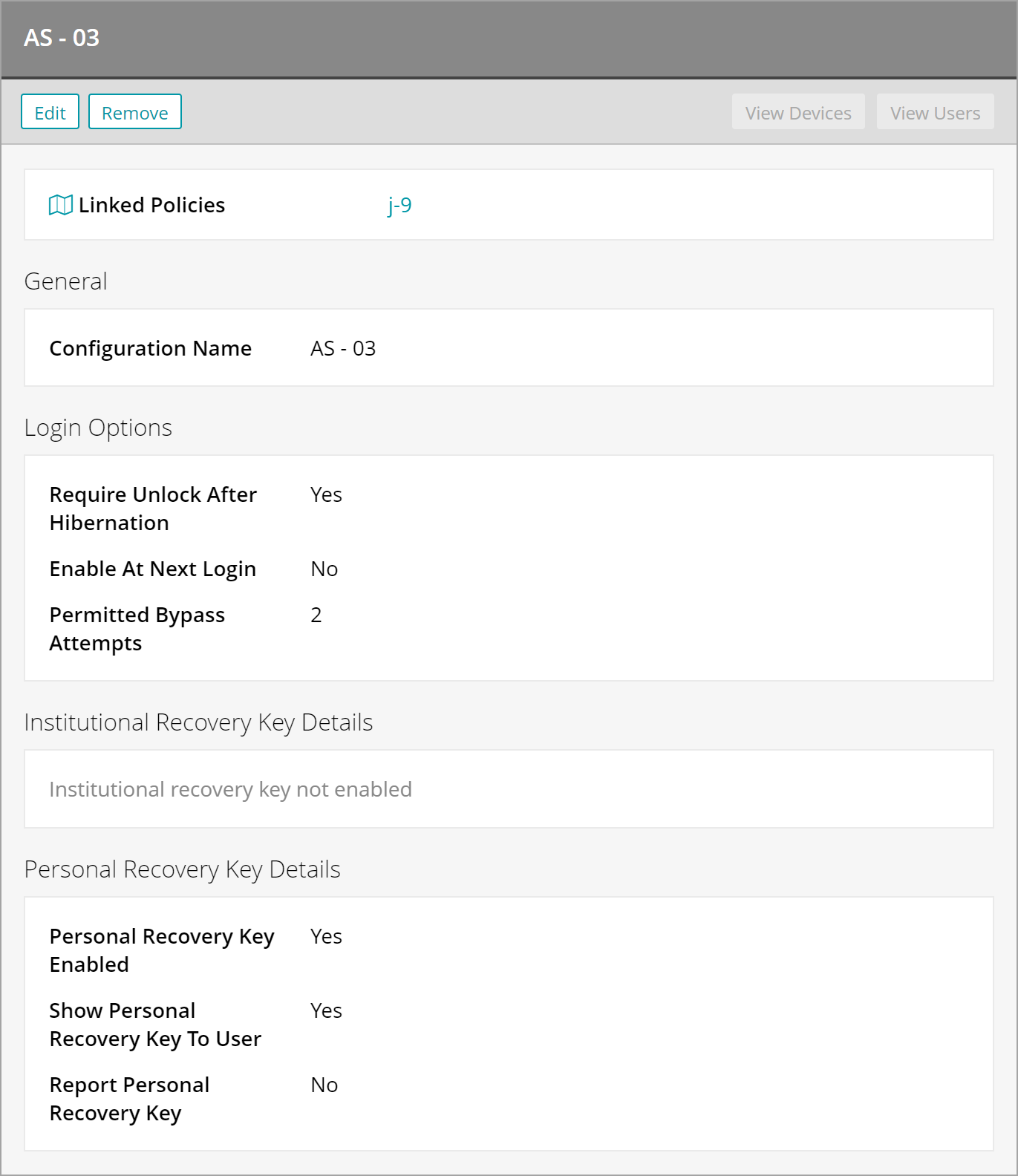
- In the right panel, click Edit. Note that if a configuration is linked to devices, it cannot be edited.
- Make edits to any available fields, then click Save.
Remove FileVault configuration from Library
- Select the Libraries tab in top navigation.
- Click Security.
- Select a configuration from the main list.
- In the right panel, click Remove.
- This action will delete a FileVault configuration from the library, and from any policies to which it has been linked.
- All linked devices with the FileVault configuration will have the profile removed.
- If FileVault has been setup following the profile installation, removing the profile from the device will not automatically decrypt the device. This will have to be done manually.
- Click Confirm.
Change institutional key
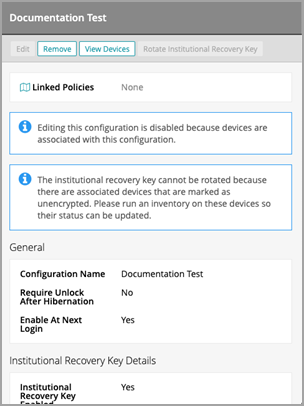
If unencrypted devices are associated with a FileVault configuration, you will be prevented from changing the institutional recovery key. Running an inventory will update the encryption status of a device.
- Select the Libraries tab in top navigation.
- Click Security.
- Select a configuration from the main list with an institutional recovery key.
- In the right panel, click Rotate Institutional Recovery Key.
- Enter a FileVault user's password (required for APFS systems).
- Select the current institutional key private certificate.
- Select the new institutional key public certificate.
- Click Save.
- This action will change the institutional recovery key for all associated devices.
View institutional key history
If a command to rotate a device's institutional recovery key has not succeeded or timed out attempting to connect to the device, the history of the institutional recovery key is available in the institutional recovery key section of the FileVault configuration. Using the device history view, the last successful key rotation can be determined and matched up to the device history allowing an unresponsive device to be unlocked. To view a previous institutional recovery key:
- Select the Libraries tab in top navigation.
- Click Security.
- Select the chosen configuration from the main list.
- Go to the Institutional Recovery Key Details section.
- Match the last institutional key to the device history.
- Click the certificate name to view the recovery key details.
.